

Reverse DNS
A reverse DNS (rDNS) record — also called a PTR record — maps an IP address back to a hostname. Where a normal DNS lookup translates a name to an address, a PTR lookup does the opposite: given 203.0.113.10, it returns something like mail.example.com.
Why reverse DNS matters
Section titled “Why reverse DNS matters”Mail deliverability. Most mail servers perform a PTR lookup on the sending IP. If no record exists, or if the record does not match the server’s hostname, the message is likely to be rejected or marked as spam. Setting a correct PTR record is one of the first steps when running your own mail server.
Cleaner logs. Network logs, firewall reports, and monitoring tools display hostnames instead of bare IP addresses when PTR records are in place, making it much easier to identify traffic at a glance.
Third-party trust checks. Some services and APIs verify that your IP has a matching PTR record before allowing connections.
Viewing and setting PTR records
Section titled “Viewing and setting PTR records”Open the server page in your dashboard and scroll to the IP Addresses table. The rightmost column is Reverse DNS (PTR). Each row shows the current PTR value for that IP, or not set if none has been configured yet.
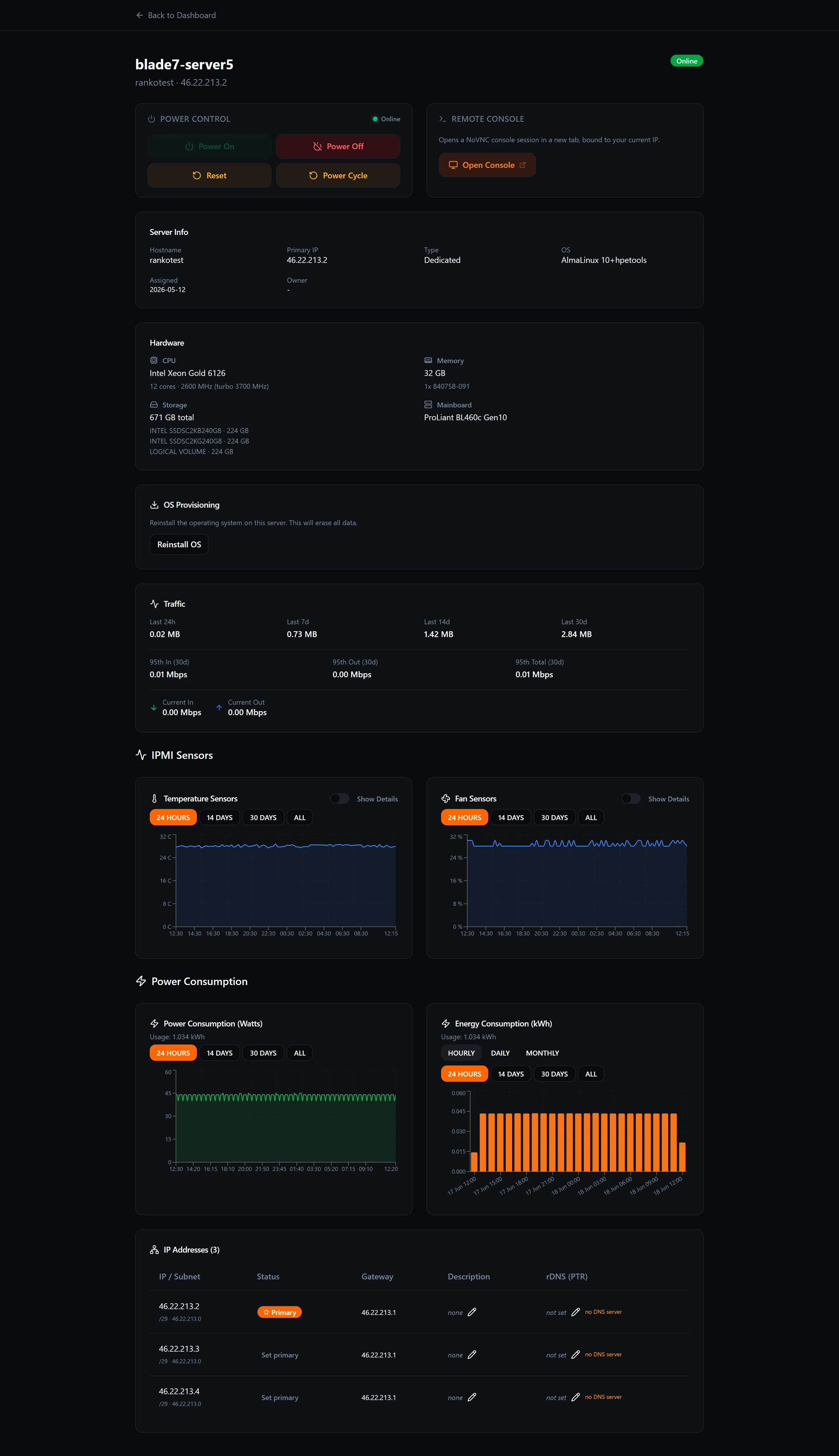
To set or update a PTR record:
- Click the Reverse DNS field in the row for the IP you want to configure.
- Type the fully-qualified hostname (for example
mail.example.com). - Save. The change takes effect within a few seconds on our nameservers, though DNS propagation across the internet can take up to an hour.
To remove a PTR record, clear the field and save. The column returns to showing not set.
”No DNS server” message
Section titled “”No DNS server” message”If a row shows no DNS server instead of not set, the subnet that IP belongs to does not have a reverse-DNS service configured. This is uncommon and means PTR records cannot be managed for that particular address through the dashboard. If you see this and need PTR records for that IP, contact support.
See also: Extra IPs — adding and managing additional IP addresses for your server.