

Install / reinstall your OS
When you order a server and choose an OS template, the server arrives with that template already installed. Use the Reinstall OS feature whenever you want to change the operating system, switch to a fresh install, or wipe the disk.
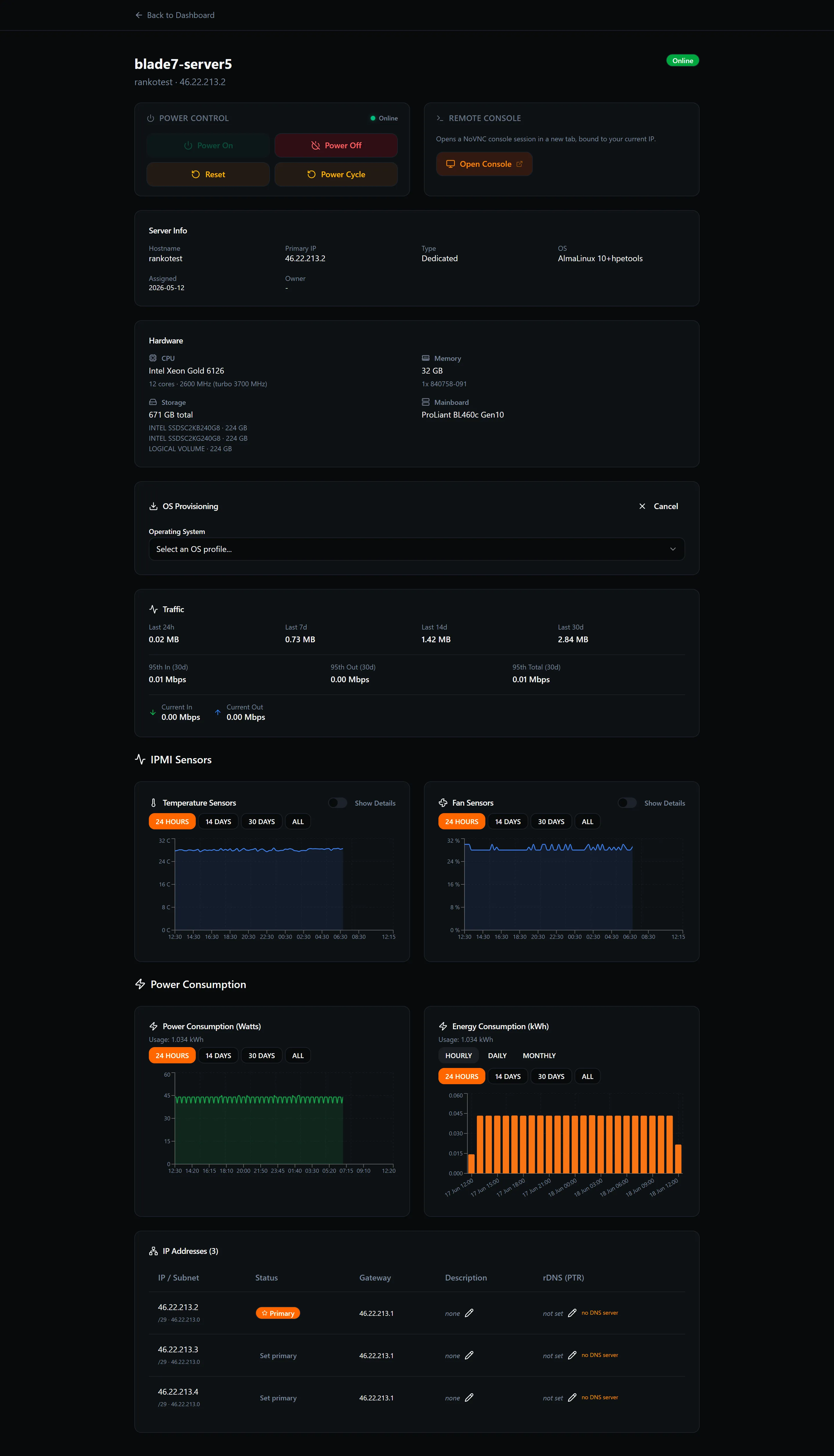
Opening the Reinstall form
Section titled “Opening the Reinstall form”- Go to your dashboard and open the server you want to reinstall.
- Find the Reinstall OS button and click it to expand the reinstall form.
Form fields
Section titled “Form fields”Operating System
Section titled “Operating System”Choose from the dropdown. Operating systems are grouped by family (Debian, Ubuntu, Rocky Linux, AlmaLinux, and so on). Rescue images are listed in their own group at the bottom — useful for booting into a recovery environment.
Disk Layout
Section titled “Disk Layout”Select how the installer should partition the disk. The available layouts depend on the chosen OS image.
Root Password
Section titled “Root Password”Enter the password that will be set for the root account. Must be at least 8 characters. See Root password for tips on choosing a strong password.
Hostname
Section titled “Hostname”The fully-qualified hostname to assign during installation (for example, server1.example.com).
SSH Public Keys
Section titled “SSH Public Keys”Paste one or more SSH public keys, one per line. These are added to root’s authorized_keys so you can log in without a password as soon as the install finishes. See SSH keys for the expected key format.
Post-install scripts (optional)
Section titled “Post-install scripts (optional)”If your OS image supports it, you can provide a script that runs automatically at the end of installation — useful for bootstrapping configuration management or installing packages.
Power action after install
Section titled “Power action after install”Choose what happens when the installation completes:
- Boot — the server powers on automatically (default).
- Stay off — the server remains powered off until you turn it on manually.
Install progress monitor
Section titled “Install progress monitor”Once you click Reinstall, the form closes and the live progress monitor appears:

The installation moves through four stages:
| Stage | What happens |
|---|---|
| Reboot | The server reboots into the installer environment. |
| Prepare | The disk is partitioned and the installer is set up. |
| Install | The operating system is written to disk and configured. |
| Done | The server reboots into your new OS. |
A streaming log beneath the stage indicator shows live output from the installer. You can click Abort at any time during the process to cancel the installation.